Quality & formats
Why your downloaded video is blurry even at 1080p: bitrate explained
A 1080p file can still look soft. We scored eight copies of one clip: bitrate decided sharpness as much as size. How to check yours and what helps.
Online tool, browser extension or desktop app? What each one can see, where its request comes from, and which fits one video, many videos or a channel.
Use an online downloader for the odd video, a desktop app for many videos, channels or sites that refuse servers, and a browser extension for a button on the page. The extension is the one that can read your browsing, so check its permissions first. They differ in access, setup and where the request comes from.
Three kinds of tool do the same job: a website you paste a link into, a button added to your browser, and a program on your computer. Most comparisons rank brands. This page compares the three kinds, so you can choose by what you need, and it is plain about the one real trade-off: how much each one can see.
Use a website for one video now and then, an app for many videos or whole channels, and an extension when you want a button on the page. Nothing needs installing for the first. The second needs a small install. The third needs a permission check.
| Your situation | Best choice | Why |
|---|---|---|
| One video, once in a while | Online website | Nothing to install, works on a phone |
| Many links, a channel or a playlist | Desktop app | Queue, folders, retries, no server limits |
| A site that refuses online servers | Desktop app | The request comes from your own connection |
| You save videos every day while browsing | Extension, with the app | One click on the page |
| A shared or work computer | Online website | Nothing is left installed |
Table: Which kind of downloader fits which situation.
The rest of the page explains each row, so you can disagree with it for good reasons.
An online downloader is a web page. You paste a link, the site's server reads the video and offers you a file. It needs no install, no permission and no update, and it works on any phone or computer with a browser.
What it can see is small: the link you paste, and what any website sees (your browser and connection). It cannot read other tabs or other pages you visit.
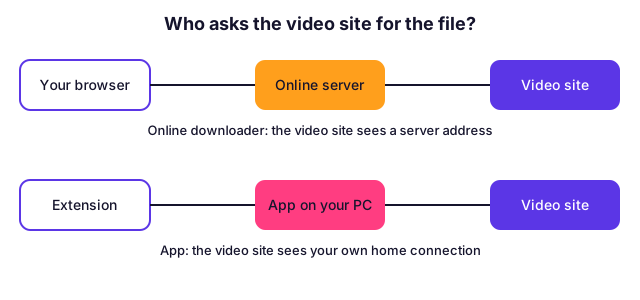
Its limits come from the same fact. The server, not you, asks the video site for the file. Sites can treat server addresses more strictly than home connections, and shared servers also set limits so one person cannot use everything. Our own measurements of this are in why download websites get blocked more than you do. The other risk is the page itself: ads, fake buttons and pop-ups. We looked at that in are online video downloaders safe.
A browser extension adds a button to the pages you watch. It saves a copy and paste, and it can sit right on the video.
It also runs inside your browser, so it is the one of the three that can be given access to pages. Chrome lets you see this. In Chrome's own help, site access has three settings: the extension may act only when you select it, only on a named site, or on all sites (Chrome Help). An extension set to "on all sites" can read and change data on every site you visit. One that works only when you select it can reach only the tab you are on.
Permissions show in Chrome's own words. For example, the downloads permission shows "Manage your downloads", and activeTab shows no warning at all, because it gives temporary access to the current tab only after you click (permissions list). So a short list of narrow permissions is a good sign, and a request for every site is a reason to ask why.
Two more limits to know:
A desktop app runs on your computer like any other program. For downloading it has three real advantages.
The costs are an install, an update now and then, and trust in the program, so only install apps from the maker's own site. Our guides cover Windows and Mac. An app does not read your browser's pages, which keeps its reach smaller than an extension's.
This is the table most comparisons skip.
| Online website | Extension | Desktop app | |
|---|---|---|---|
| Sees the link you give it | Yes | Yes | Yes |
| Can be allowed to read the pages you visit | No | Yes, if you grant it | No |
| Request to the video site comes from | A server | Not itself: it hands the link to the website or the app | Your computer |
| Install and updates | None | Add-on, updates through the browser store or by hand | Program, updates by hand or in the app |
| Handles a whole channel | Limited | Passes it on | Yes |
| Works on a phone | Yes | Mostly no | No |
Table: What the three kinds of downloader can see, where their request comes from and what they handle.
The Raptor extension follows the narrow route. On the supported video sites it only places the button and finds the post's link. Its other permissions are the toolbar click, the right-click menu, downloads, settings storage and a connection to the Raptor app on your own computer. The full list, with the reason for each, is in the extension guide. One optional setting, which is off at first, can watch eligible browser downloads from other sites. Read what a setting does before you turn it on. How we handle your data is on the privacy page.
Ask how many videos you save and whether a site refuses you.
Our Which one do I need section says the same in three lines.
The tool does not change what you may download. Save only what you own, what is licensed for it, or what the owner allows, and never use any tool to get around a login, a paywall, copy protection or privacy settings. The rules are in is it legal to download videos. A private video stays private in all three kinds.
Not by default. An online tool sees only the link you paste. An extension runs inside your browser and, depending on its permissions, can read the pages you visit. A well-made extension with narrow permissions is fine, but it needs a check that a website does not.
A desktop app. It can list a channel or playlist, keep a queue, retry after a slow-down message and save to a folder on your computer. A website is best for one link at a time, and an extension mainly hands links to something else.
With Raptor, no: the extension opens the website when the app is not running. With the app running, the extension sends links straight to it. Other extensions work differently, so read what each one says it does.
An online tool asks the video site from a server. Some sites trust server addresses less than home connections and refuse them. An app asks from your own connection, so it is treated like you watching the video.
In Chrome, open Extensions, choose Details and read the site access setting. You can limit it to when you select the extension, to one site, or to all sites. Remove any extension you no longer use.
No. A store listing means the extension passed the store's review, not that its permissions suit you. Read what it asks for and why, and keep only the ones you use.
Not yet. Today you add it by hand with Developer mode, which our install guide explains step by step. That is one more reason to read its short permission list first.
A 1080p file can still look soft. We scored eight copies of one clip: bitrate decided sharpness as much as size. How to check yours and what helps.
Use YouTube's Creative Commons filter, check the licence label, write the credit line, and learn what a CC BY tag does and does not cover.
Age-restricted YouTube videos need a signed-in adult, so a link downloader only gets a sign-in message. Why it happens and what you can do instead.
HLS and DASH cut a video into short pieces and a playlist. What that means when you save one, with the pieces counted on real public links.
First published . Written and checked by the Raptor Downloader team (how we write and check guides). Download only videos you own or have permission to use. Terms · Copyright and takedowns