
Quality & formats
What HLS and DASH are, and why online videos are split into pieces
HLS and DASH cut a video into short pieces and a playlist. What that means when you save one, with the pieces counted on real public links.
A 1080p file can still look soft. We scored eight copies of one clip: bitrate decided sharpness as much as size. How to check yours and what helps.
A downloaded video is blurry at 1080p when its bitrate is too low: the frame is full size, but the file holds too little data per second to draw detail. In our test, a 1080p copy at 1 Mbps scored below a 720p copy at 2.5 Mbps. Check the file's bitrate, not its name.
You downloaded a video at 1080p and it still looks soft. Edges are fuzzy, dark areas look blocky, or fast movement smears. This page explains why that happens, how to tell which cause is yours in two minutes, and what actually helps. The key number is not the frame size. It is the bitrate, and almost no downloader page mentions it.
A downloaded video is blurry at 1080p most often because its bitrate is too low. Frame size, such as 1080p, counts the pixels in each picture. Bitrate counts how much data the file spends on each second. Wikipedia defines bit rate as "the number of bits that are conveyed or processed per unit of time", and describes compression as a trade-off between "minimizing the bitrate and maximizing the quality". Squeeze a 1080p picture into too few bits and the encoder throws away fine detail. The picture still has 1920 × 1080 pixels, but many of them are soft blocks.
A downloader does not make this softness. It copies a file the site already made, so the blur was there before you pressed the button. Our guide on why a download can never be bigger than the copy the site kept explains where the sizes come from. This page covers the other half: how much data each copy was given.
You can work out a file's bitrate with one sum, without any software: file size in megabits, divided by length in seconds. A megabyte is 8 megabits. A 60 MB file that runs 3 minutes (180 seconds) is 60 × 8 = 480 megabits, and 480 ÷ 180 is about 2.7 Mbps. The result includes the sound, which is small, so it slightly overstates the picture's share.
If you have FFmpeg, one command prints the exact number. The ffprobe tool is documented at ffmpeg.org; run ffprobe -v error -select_streams v:0 -show_entries stream=width,height,bit_rate -of default=nw=1 yourfile.mp4 and read bit_rate in bits per second. Some files, such as WebM, leave that field empty. Then use the sum above.
To judge the result, compare it with what YouTube asks uploaders to send. Its help page lists recommended bitrates for standard frame rates (24, 25 or 30 a second) and notes that "No bitrate limit is required":
| Frame size | Recommended bitrate |
|---|---|
| 2160p (4K) | 35 to 45 Mbps |
| 1440p | 16 Mbps |
| 1080p | 8 Mbps |
| 720p | 5 Mbps |
| 480p | 2.5 Mbps |
These are upload recommendations, not what any site serves back to viewers. Sites re-encode every upload and usually serve much less. Still, they show the scale: a 1080p file at 1 Mbps holds an eighth of the data that YouTube suggests for that size. Newer formats such as VP9 and AV1 draw the same picture with fewer bits than H.264, so a low number does not prove a bad file. Compare files of the same codec.
We tested the claim instead of repeating it. On 17 November 2026 we took 8 seconds of the open film Big Buck Bunny (licence CC BY 3.0, 1080p, 24 frames a second) and saved a lossless copy as the reference. Then we encoded it with H.264 at eight different size and bitrate settings. Every copy was shown on a 1080p screen (the smaller ones scaled up, as a player does) and scored against the reference with SSIM. SSIM is a standard score where 1.0 means "identical to the original".
| Copy | Real file bitrate | SSIM (1.0 is identical) |
|---|---|---|
| 1080p at 8 Mbps | 7,465 kbps | 0.9863 |
| 1080p at 5 Mbps | 4,732 kbps | 0.9853 |
| 1080p at 2.5 Mbps | 2,305 kbps | 0.9823 |
| 720p at 5 Mbps | 4,493 kbps | 0.9822 |
| 720p at 2.5 Mbps | 2,299 kbps | 0.9798 |
| 1080p at 1 Mbps | 900 kbps | 0.9708 |
| 480p at 1 Mbps | 917 kbps | 0.9684 |
| 1080p at 0.4 Mbps | 368 kbps | 0.9470 |
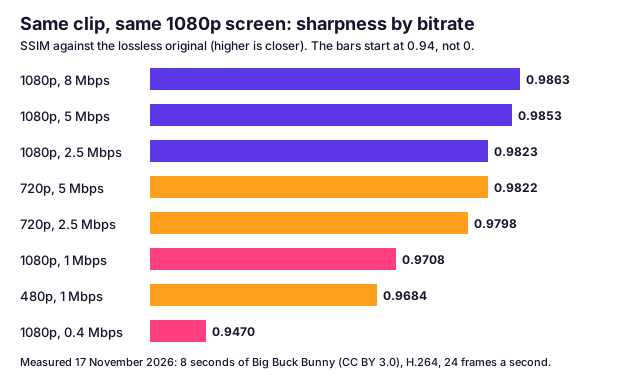
Three things stand out:
Our limits, stated plainly: this is one 8-second clip of an animated film, which compresses more easily than a shaky phone video of a crowd, so real footage needs more bits to reach the same score. We scored one codec (H.264) at one speed setting. The numbers show the direction, not the exact bitrate you need. We did not measure any site's own copies in this test.
Find your case in the table. The middle column is a check you can do in a minute.
| Cause | How to tell | What helps |
|---|---|---|
| The site's copy has a low bitrate | The frame says 1080p but the sum above gives under about 2 Mbps for a wide video | Download a larger size if the site lists one. If it does not, the soft copy is all that exists |
| A smaller size was picked | The file's frame size is smaller than the largest size listed | Download again and pick the largest size |
| The site's copy is small | The site's own player is soft too, at its top size | Nothing. The source is soft. Our guide to why you get 720p shows how often that is the case |
| A new upload still processing | The upload is a few hours old and the player offers only low sizes | Wait, then download again. YouTube says higher qualities may take "several hours" |
| The video was enlarged | A file called "4K" whose frame shorter side is 720 | Nothing adds detail back. See what a "4K" file made from 720p really is |
| The file was re-encoded again | You converted it, or an app sent it on | Go back to the first file and do not convert it again |
| Your screen or player scales it | The file looks sharp in VLC at 100% size | Change the player or screen scale. See the next sections |
Check the first two rows before anything else. They cover most cases, and both are decided by numbers you can read from the file.
Every time a video is encoded again, a new copy is made from the old one, and the encoder throws away a little more detail. It cannot bring back what the first pass discarded. So a chain of copies, such as a download, an edit, an export and a message, ends softer than the start. Each step may look fine alone, but the loss adds up.
You can avoid most of it. Our downloader saves the file the site sent, and joins separate picture and sound files without converting either one (see why sites split a video into DASH and HLS pieces). A tool that converts every file to its own format is adding one more copy. If you need to convert, do it once, at the same frame size, with a bitrate at least as high as the file's own. If you want to make a smaller file for sharing, expect the loss and choose the size to suit it.
Apps that send videos on are a common case. Many make a new, smaller copy to save data, which is why a clip can look sharper on the sender's phone than on yours. We did not test any messaging app for this page, so we give no numbers for them. The fix is practical: ask the sender for the file as a document or a link, or fetch it from the original site.
Sometimes the file is fine and the playing is not. A 720p video on a large monitor, or a 1080p video stretched on a 4K TV, is enlarged by the screen, so it looks softer than the same video on a phone. A player window that is bigger than the video enlarges it too.
Two checks settle it. First, open the file in VLC and set the zoom to 100%, so one video pixel is one screen pixel. If it looks sharp there, the file is sound. Second, check the player's own quality setting: streaming players drop to a smaller copy when the connection is slow, which looks like blur but is not in the file. A downloaded file does not do that. It plays at its own quality every time.
A file in a newer format can also play badly on an old device, with stutter or blocks that look like blur. That is a codec problem, not a sharpness problem. Our guide on which players open which video type explains how to tell.
AI "unblur" tools make a video bigger and sometimes crisper-looking, but they cannot return detail that the file lost. They work by guessing: a model predicts what sharp pixels would probably look like, based on millions of other videos. On a face or on text, a good guess can look better. On a leaf or a crowd, it can invent texture that was never there.
We tested the simpler version of this idea in our guide to the 720p limit. We enlarged two 720p videos to "4K" the way converters do. The files were about six times larger, and, shrunk back, they matched the original slightly less well than a plain copy did. That test covered enlarging, not a specific AI product, so we do not rate any tool. Our position is simple: try an enhancer on a copy, never on your only file, and expect a guess rather than a rescue. Our downloader does not enhance video. It gives you the real file at the sizes the site kept.
If the site only ever kept a soft copy, no downloader and no setting makes it sharper, and a page that promises that is selling the guess described above. Private, members-only or protected videos need an account, and we never sign in or bypass a login, paywall or copy protection. Download only videos you are allowed to keep, such as your own or ones whose owner permits it, and read our guide on whether downloading a video is legal. This is general information, not legal advice.
Most often the copy the site kept is small or heavily compressed, so it was soft before you downloaded it. A downloader copies that file. Check the file's frame size and its bitrate (file size divided by length). A low bitrate gives blur even at 1080p.
Either the video is new and YouTube is still making its sharper copies, or the uploader sent a soft video. YouTube's help says a new upload is "initially processed in low quality" and may miss higher qualities "for several hours". If it is still soft a day later, the soft copy is what exists.
You cannot remove compression blur, because the detail is not in the file. Download again at a larger size if the site has one. An AI enhance tool can make edges look crisper by guessing, but it adds a guess, not the lost picture.
Start from the best copy: pick the largest size the site lists, and do not convert it again. If you must re-encode, keep the same frame size and use a bitrate at least as high as the file's own. YouTube recommends 8 Mbps for 1080p uploads at normal frame rates.
An app that sends a video usually makes a new, smaller copy to save data, and a new copy made from an old one can only lose detail. We did not measure any messaging app, so we cannot give its numbers. Ask the sender for the file as a document or a link if you need the original.
Divide the file size in megabits by the length in seconds. A 60 MB file that is 3 minutes long is 60 × 8 = 480 megabits over 180 seconds, about 2.7 Mbps. Or run ffprobe, which prints the bit rate of the file and of each stream.
No. In our test a 720p copy at 2.5 Mbps scored 0.9798 and a 1080p copy at 1 Mbps scored 0.9708 against the same original. A bigger frame with too little data is softer than a smaller frame with enough.
It can make it bigger and sometimes crisper-looking, but not truly sharper. It works by guessing detail from the pixels around it. Our test of enlarging 720p videos to 4K gave files about six times larger with no detail the 720p file did not hold.
HLS and DASH cut a video into short pieces and a playlist. What that means when you save one, with the pieces counted on real public links.
MP4 is far smaller and sharper than GIF for the same loop. See our measured sizes, the 256-colour limit, and the few places that still need a real .gif.
A download is never sharper than the biggest copy the site kept. Measured on 56 videos: why you get 720p, what "4K" tools give you, and how to get the best.
SRT vs VTT vs TXT: what is inside each subtitle file, where each one works, how to convert them, and why YouTube's automatic captions repeat every line.
First published . Written and checked by the Raptor Downloader team (how we write and check guides). Download only videos you own or have permission to use. Terms · Copyright and takedowns