Fix a problem
Why a downloaded video won't play, and how to fix it
Why a downloaded video won't play: an unfinished file, or a video type your player can't read. How to tell which, and the fix for computers, phones and TVs.
A downloaded video is in your browser's download folder, almost always named Downloads. How to find it on Windows, Mac, iPhone and Android.
A downloaded video goes to the folder your browser or app saves files in, and that folder is almost always called Downloads. On a computer it sits inside your user folder. On an iPhone it is the Downloads folder in the Files app. Your browser's Downloads list shows the exact place.
You pressed Download, the bar filled up, and now you cannot find the video. This is common, and the video is almost never lost. It is in one folder, and that folder depends on the device and on one setting. This page shows where to look on a computer, an iPhone and an Android phone, how to change the folder, and what to do when the file is not where it should be. We read the help pages quoted here on 18 November 2026.
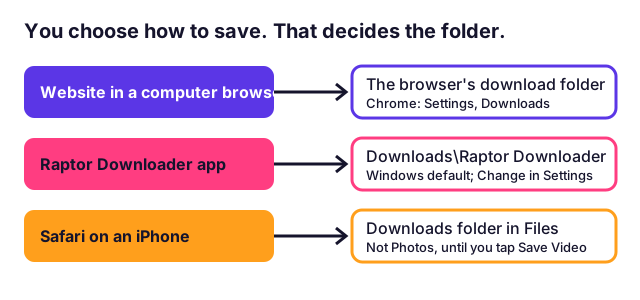
A downloaded video goes to the download folder of the app that saved it, and for browsers that folder is named Downloads. A website cannot choose the folder. When you press a download button, your browser takes the file and puts it in its own place. That is why the answer is about your browser and not about the website.
| Device and app | Where the video goes | How to see it |
|---|---|---|
| Windows, Chrome | \Users\<username>\Downloads | Chrome's Downloads list, or File Explorer, then Downloads |
| Mac, Chrome | /Users/<username>/Downloads | Chrome's Downloads list, or Finder, then Downloads |
| Mac, Safari | The folder named in Safari, Settings, General | The Show Downloads button in Safari |
| Windows, Edge | The folder named in Edge, Settings, Downloads | Edge's Downloads list |
| iPhone, Safari | Downloads folder in the Files app | Files, then Downloads |
| Android, Chrome | The Download folder | Chrome's Downloads list, or the Files app |
| Raptor Downloader app, Windows | Downloads\Raptor Downloader | The Show button in the app's Downloads panel |
Chrome's help page gives the first two paths in these words: on Windows "\Users<username>\Downloads" and on a Mac "/Users/
On a computer, open your browser's Downloads list first. It is faster than searching folders. Google's Chrome help says: click the download icon near the address bar, or click More (the three dots), then Downloads, and "click a file name to open it". The list shows only recent files, but it keeps working after you close the tab.
If the list does not help, open the folder yourself. In File Explorer on Windows, or Finder on a Mac, look for Downloads in the left column. Sort by Date modified, newest first. A video you saved a minute ago is at the top.
Two small facts save a lot of worry. First, the Remove button in Chrome's list only clears the item from the list. Chrome's help says the file stays on your computer. Second, if you move a file after downloading it, the browser may not find it again. Safari's guide warns about this too. The file is fine. Only the browser's shortcut is broken.
You can choose a different folder, such as an external drive with more room. Video files are large, so this is useful on a small laptop disk.
| Browser | Steps |
|---|---|
| Chrome | More, Settings, Downloads, then Change. Turn on "Ask where to save each file before downloading" to choose every time |
| Edge | Settings and more, Settings, Downloads, then Change next to Location |
| Safari on Mac | Safari, Settings, General, then the File download location menu |
Edge's page lists the same steps: open Settings, select Downloads on the left, and select Change next to Location. A change affects the next downloads. It does not move the files you already have. Firefox has the same two settings in its own Settings page. We could not load Mozilla's help page in this check, so we give no steps for it here.
On an iPhone, a downloaded video goes to the Files app, not to Photos. This surprises many people, because a photo you take goes straight to Photos. Safari treats a downloaded video as a file. Open Files, then Downloads, and it is there.
Which Downloads folder you see depends on a Safari setting: iCloud Drive, On My iPhone, or a folder you pick. If Downloads looks empty, check the other place. To move the video into your camera roll, tap it, tap Share, then Save Video. Our guide to saving a video to the iPhone camera roll explains each choice, and why Save Video sometimes does not appear.
On Android, Chrome puts a downloaded video in the Download folder. Open Chrome, tap the three dots, then Downloads. Or open the Files app and tap Downloads. Most gallery apps show this folder as its own album, so the video is often already in your gallery under a name like Download. Our guide to downloading on Android without an app has a table for video, sound and ZIP files, and the steps to unpack a ZIP.
Our website tells your browser to save the file. Our server sends each finished video with a header that says "attachment" and the file name, which is the standard web way to say "save this, do not play it in the tab". From there it is your browser that picks the folder. So the table above applies to every video you get from raptordownloader.com. We read this in our own code and in the Android guide where we show the headers. We did not test every browser for this page.
The Raptor Downloader app works differently, because it is not a browser. Our app's help says it saves in Downloads\Raptor Downloader by default, that Change in Settings picks another folder, and that the app remembers it. A whole channel gets its own folder, and each video gets its own folder when you save more than one file type. The Show button opens the right folder, so you do not need to search. See the difference between the website, the extension and the app if you are not sure which to use.
The browser extension has one more detail. Its help says that when you let Raptor manage an ordinary browser download, "the file still saves in your browser's chosen download folder". So the extension does not change the place.
Start with your browser's Downloads list, because it knows the real path. If the list is empty or the file is missing, work through these causes.
| What happened | How to tell | What to do |
|---|---|---|
| You changed the folder earlier | The browser's settings show another folder | Open that folder, or press Change to go back |
| The browser asked where to save, and you picked another place | The "ask where to save" option is on | Check the last folder you used in the save window |
| You moved the file | The list says the file cannot be found | Search your computer for the file name |
| The download did not finish | The list shows Failed or a partial file | Download again. See why a video will not download |
| It is in iCloud Drive, not on the iPhone | Files shows Downloads in one place only | Check both On My iPhone and iCloud Drive |
| You are looking in Photos | The video is in Files | Open Files, then Downloads |
If you find the file but it will not play, the folder is not the problem. Read why a downloaded video will not play. If it plays but you hear nothing, read why a downloaded video has no sound.
Some "downloads" never reach a folder you can open. Netflix, Disney+ and the YouTube Premium Download button keep videos inside their own app, in storage you cannot browse, and they play only in that app. They are not video files. You cannot copy one to a USB drive or send it to a friend. Our page on YouTube Premium downloads versus a real file explains the difference.
A file from a downloader is a normal MP4 or MP3. It sits in a folder you can see, and it plays in any player. That is the reason you can always find it, once you know where to look.
Only save videos you own, have permission to keep, or that the owner has made free to share. Our page on whether it is legal to download videos covers this. We do not help with private posts, videos behind a login, or copy-protected streams, and nothing on this page is advice to get around them.
To the Downloads folder inside your user folder, unless you changed it. Google's Chrome help gives the paths: \Users\<username>\Downloads on Windows and /Users/<username>/Downloads on a Mac. In Chrome, press the three dots, then Downloads, to see the list.
Open your browser's Downloads list. In Chrome, click the download icon near the address bar, or open the three-dot menu and choose Downloads. Click the file name to play it. The list also shows where the file lives.
Usually one of three things. You changed the download folder in the browser's settings. The browser was set to ask where to save each file and you picked another folder. Or you moved the file and the browser's list lost track of it.
To the Downloads folder in the Files app, not to Photos. Which Downloads folder depends on a Safari setting: iCloud Drive, On My iPhone, or a folder you pick. Our iPhone guide has the four taps that move the video into your camera roll.
To the Download folder on the phone. Open Chrome's Downloads list or the Files app to see it. Many gallery apps also show it in a Download album, so you often do not need to move it.
In Chrome, go to More, Settings, Downloads and click Change. In Edge, go to Settings, Downloads and click Change next to Location. In Safari on a Mac, go to Safari, Settings, General and use the File download location menu.
By default in Downloads\Raptor Downloader on Windows. Open the gear in the app, find Save downloads in, and click Change to pick another folder. The app remembers your choice.
Into the app's own storage, not into a folder you can open. Those files are meant to play only inside the app. A video from a downloader is a normal file you can see, copy and play anywhere.
Why a downloaded video won't play: an unfinished file, or a video type your player can't read. How to tell which, and the fix for computers, phones and TVs.
Why a downloaded video has no sound: the site kept the sound in a separate file, the upload is silent, it was muted, or your player. How to tell and fix each.
A video downloader failed? Find your error in one table: what it means, whether trying again helps, and the fix that works. From our own 46 error codes.
A 1080p file can still look soft. We scored eight copies of one clip: bitrate decided sharpness as much as size. How to check yours and what helps.
First published . Written and checked by the Raptor Downloader team (how we write and check guides). Download only videos you own or have permission to use. Terms · Copyright and takedowns