Quality & formats
Why your downloaded video is blurry even at 1080p: bitrate explained
A 1080p file can still look soft. We scored eight copies of one clip: bitrate decided sharpness as much as size. How to check yours and what helps.
Save a video with its subtitles as an MP4 plus an SRT file, add them as a track, or burn them into the picture. What each does, with measured times.
Save the video as an MP4 and its subtitles as an SRT file with the same name in the same folder. A player such as VLC then shows them and lets you switch them off. To make the words part of the picture, burn them in with ffmpeg, which encodes the whole video again.
"Download a video with subtitles" can mean three different things, and the pages that answer it often mix them up. You may want the video and a subtitle file side by side, the subtitles stored inside the video file, or the words drawn on the picture. This page explains each one, shows how to get it, and gives the times we measured so you can choose.
A video can carry subtitles as a separate file, as a track inside the file, or as part of the picture, and only the last one cannot be turned off. The first two are called soft subtitles. The third is called burned in, or hard.
| Separate file | Track inside the file | Burned into the picture | |
|---|---|---|---|
| What you have | Lesson.mp4 and Lesson.srt | One Lesson.mp4 or .mkv | One Lesson.mp4 |
| Can be switched off | Yes | Yes | No |
| Can be edited later | Yes, it is a text file | Yes, take it out and edit it | No |
| Needs the video encoded again | No | No | Yes |
| Works where the player ignores subtitle files | No | Often | Always |
| Best for | Watching on your own computer, editing | One tidy file for your own library | Sharing where nobody can load a subtitle file |
Table: The three ways to keep subtitles with a video, and what each one allows.
Other guides pick one of these and call it "the" answer. 4K Video Downloader's own help shows the split well: it can embed subtitles in the video or save them as a separate .srt file, and it cannot make subtitles for a video that has none (4K Video Downloader Help). That last point holds for every tool, ours too.
Paste the link, download the video as MP4, then download the subtitles as SRT from the same link, and the two files are ready to use together. Raptor Downloader keeps them as two files on purpose, because that is the version you can still change.
This works when the video has captions. We use the creator's captions when they exist and the site's automatic ones otherwise. For a channel or playlist, tick both Video and Subtitles for each video and you get both files for each one.
The file names matter. When the video has a track in the language you asked for, the SRT gets the same name as the MP4, so Lesson 1.mp4 and Lesson 1.srt. When we have to give a track in another language, the code goes in the name, for example Lesson 1.ur.srt, which players read as the language. The code behind our file names cuts the video name at 80 characters, but cuts it at 68 when a language code is added. So for a very long title, rename the SRT to match the MP4 letter for letter.
What we do not do. We do not join the two files and we do not burn the words in. We also give you only captions the site really holds: no captions on the video means no Subtitles button, and not every site stores captions. Our per-site counts are on the transcript page. For the difference between SRT, VTT and TXT, see which subtitle file you need.
An SRT beside an MP4 with the same name opens by itself in VLC. The VideoLAN wiki says that if both names match, VLC opens the subtitle file automatically, and its example is Dark Star.avi with Dark Star.srt (VideoLAN wiki).
If no words appear:
Lesson 1.mp4 and Lesson 1 .srt are different names.Some phone gallery apps may not read a subtitle file that sits beside a video; try a player app such as VLC. If a phone player still shows nothing, use a track inside the file or burn the words in.
Adding an SRT as a track keeps the picture and sound exactly as they are, so it is fast and loses nothing. With ffmpeg, one command does it:
ffmpeg -i "Lesson.mp4" -i "Lesson.srt" -c copy -c:s mov_text -metadata:s:s:0 language=eng "Lesson with subtitles.mp4"
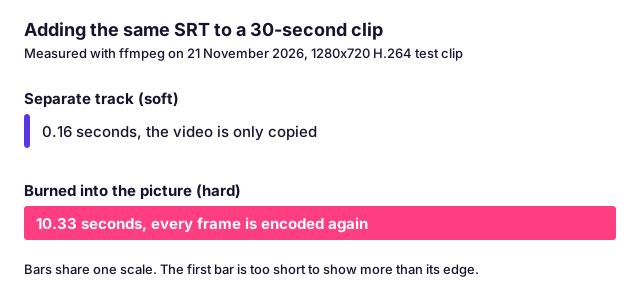
-c copy copies the video and audio untouched. -c:s mov_text turns the SRT into the subtitle type that MP4 holds. We ran this on a generated 30-second 1280 by 720 clip on 21 November 2026. The result held the same H.264 video and AAC audio plus one new mov_text subtitle track, and it took 0.16 seconds.
For an MKV file, use -c:s srt instead of -c:s mov_text. MKV keeps the text as SubRip. We tested that too: same video and audio, one subrip track, 0.15 seconds. The file stays about the same size, because the text of ten captions weighs almost nothing.
Choose the container with care:
| Container | Subtitle track | Note |
|---|---|---|
| MP4 | mov_text | Plays in most apps, but some players ignore the track |
| MKV | subrip | Handles several tracks well, plays in VLC |
| WebM | Not for this | HandBrake says soft subtitles are currently unsupported in WebM |
Table: Which video containers can hold an SRT as a track.
The WebM line comes from HandBrake's subtitle page. If your download is WebM, convert it to MP4 or MKV first; the MP4 name does not tell you what is inside, so look before you choose.
Burn subtitles in only when the video must show them everywhere, because it cannot be undone and it encodes the whole video again. A soft track can be lost when the file is re-saved or uploaded somewhere that keeps only the picture and sound. A burned-in caption survives, because it is part of every frame.
The ffmpeg command is:
ffmpeg -i "Lesson.mp4" -vf "subtitles=Lesson.srt" -c:v libx264 -crf 23 -c:a copy "Lesson burned.mp4"
-vf "subtitles=..." draws the captions on each frame, -c:v libx264 -crf 23 encodes the video again, and -c:a copy leaves the sound alone. On the same 30-second test clip this took 10.33 seconds with the fast veryfast setting, against 0.16 seconds for the track. The output had video and audio and no subtitle track at all, because the words were now pixels. A two-hour film is 240 times longer than our clip, so expect a long wait. The time depends on your computer, so treat our figures as a comparison, not a promise.
Three things to know before you burn:
sub.srt, with no spaces or colons, and try again.-crf number means more detail and a bigger file. 18 is a common choice for near-original quality. 23 is a balance.What about HandBrake? Many guides send you there. HandBrake lets you import an external SRT and set its timing offset. Its documentation lists Blu-ray PGS, DVD VobSub and ASS/SSA as subtitles that can be burned in, and says that for ASS/SSA the styling is kept when burned. It does not say that an SRT can be burned in (HandBrake Documentation). Forum posts disagree, so we did not test it. Use ffmpeg for an SRT, or turn the SRT into an ASS file first.
Choose by where the video will be watched, not by which tool you like. The table gives a starting point.
| You want to... | Choose | Why |
|---|---|---|
| Watch a lecture on your laptop | MP4 plus SRT in one folder | Fastest, and you can switch the words off |
| Edit the video in Premiere, DaVinci Resolve or CapCut | MP4 plus SRT, import the SRT | The editor makes its own captions from the file |
| Keep one tidy file in a library | MKV with the track inside | One file, several languages possible |
| Send a clip to someone who just taps it | Burned in | Needs no player settings |
| Post it where you cannot upload a subtitle file | Burned in | The words stay with the picture |
| Read or quote the words | TXT, not a video | See SRT, VTT or TXT |
Table: Which way of keeping subtitles fits each use.
Most readers want the first row. If you are not sure, keep the MP4 and the SRT, because you can make the other two from them later and you cannot go backwards.
A downloader can only give you subtitles that exist. If the owner added none and the site made none, there is nothing to download, and no honest tool can invent them. Vimeo, for one, offers captions that the owner has added, and says they download as .srt, .vtt or .ttml files, so they are separate files there too (Vimeo Help). YouTube accepts SRT and WebVTT among its caption upload formats (YouTube Help), which is useful when you want to put corrected subtitles back on your own video.
Two limits are worth knowing. Words already burned into a video, such as the captions of a Twitch clip, are part of the picture and no download can separate them. And we save only public videos: nothing that needs a login, a purchase or a bypass of DRM.
Subtitles are the work of whoever wrote them, and the video belongs to its owner. Saving a copy for your own offline viewing is not the same as publishing it. Before you share a video with its subtitles burned in, check whether you may download and reuse it.
Download the video as MP4, then download its subtitles as an SRT file from the same link. Keep both in one folder with the same name, for example Lesson 1.mp4 and Lesson 1.srt. A player such as VLC loads the subtitle file by itself when the names match.
Yes, in two ways. You can add the SRT as a track inside the file, which is fast and can be switched off, or burn the words into the picture, which is slow and permanent. Raptor Downloader gives you the MP4 and the SRT as two files. Joining them is a second step on your own computer.
Soft subtitles are text, either in a separate file or as a track inside the video, and the viewer can turn them on or off. Hard subtitles, also called burned-in or open captions, are drawn on the picture itself. They always show and nobody can remove them.
A video has no subtitles when its owner added none and the site made no automatic ones, or when the player does not load them. Check that the SRT has exactly the same name as the video, sits in the same folder, and is turned on in the player's subtitle menu.
Use ffmpeg: ffmpeg -i in.mp4 -vf subtitles=in.srt -c:v libx264 -crf 23 -c:a copy out.mp4. It draws every caption onto the frames and encodes the video again. On our 30-second test clip that took 10.33 seconds, against 0.16 seconds to add the SRT as a separate track.
Only if the video lists a track in that language. Choose the language when you download the subtitles. If the video has no track in it, we give the track in the language spoken and put its language code in the file name, for example My video.ur.srt, so you can see what you got.
A little. Burning in encodes every frame again, and each new encode of a lossy format such as H.264 loses some detail. A low CRF number such as 18 keeps more detail and makes a larger file. Adding subtitles as a track copies the video untouched.
No. The words are part of the pixels. Only the original file, made before the words were drawn, can show the picture without them. If you plan to burn in subtitles, keep the MP4 and the SRT as well.
A 1080p file can still look soft. We scored eight copies of one clip: bitrate decided sharpness as much as size. How to check yours and what helps.
HLS and DASH cut a video into short pieces and a playlist. What that means when you save one, with the pieces counted on real public links.
MP4 is far smaller and sharper than GIF for the same loop. See our measured sizes, the 256-colour limit, and the few places that still need a real .gif.
A download is never sharper than the biggest copy the site kept. Measured on 56 videos: why you get 720p, what "4K" tools give you, and how to get the best.
First published . Written and checked by the Raptor Downloader team (how we write and check guides). Download only videos you own or have permission to use. Terms · Copyright and takedowns